Finder Command
906 words
I’ve done my fair share of dissing the bad software that is known as ‘Finder.app’ in OSX here. And sadly it remains a hugely buggy and unpolished bit of software that every OSX user has to put up with. Most of the bugs it has, from its keenness to rearrange the icons on my desktop, to locking itself up or the frequent crashes, remain even in its umpteenth update.
And today I consciously discovered another gross inconsistency. It has to do with the Command key. Old school Mac users will know that holding the command key while releasing a dragged object in the Finder traditionally toggles the ‘snap to grid option’. This kind of behaviour seemed to be encouraged in many applications in the classic MacOS (e.g. when positioning fields in FileMaker).
By now I am quite convinced (but not quite sure – smirk) that the Finder’s incapability of arranging icons sanely is caused by it having a rather claustrophobic idea of how much space each icon needs. And if there are icons anywhere near to where new files are supposed to appear on the desktop (i.e. at the right), these new files or volumes – which you’ll be likely to access soon after – will materialise rather inconveniently at the centre of your desktop, buried beneath all your windows. Add some resolution switching and such like and you’ll even see some icon moving.
Thus, I figured, it’d be good (in the sense of helpful for working around incapable software, rather than the proper sense of the word, that is) to get a ‘feel’ for where the Finder’s ‘grid lives, so I can keep enough free space around it. To do that I did a lot of Command-Moving things around… and discovered what I’d rate inconsistent behaviour.
To make things more complicated, Apple decided to use the Command key as a modifier for adding to selections discontinuously in the Finder as well. This isn’t a bad idea per se as it is in-line with the system-wide selection behaviour: Shift-Click will extend continuously, Command-click will just add/remove the clicked item to/from the selection. As far as I can figure the classic Finder was still very usable despite of this because it was properly spatial and there was not ‘column mode’. But that’s yet another story.
Let me just list a few actions on the Finder’s desktop with ‘snap to grid’ turned off and judge for yourself:
-
Click and drag hard drive icon, hold command key, release. The icon will smoothly slide to the next free grid position. Note that the ‘next free grid position’ may very well not be close to where you released the icon. In fact, it doesn’t need to be free either. Perhaps saying ‘next position the Finder considers appropriate. In fact, the Finder’s behaviour reminds me a lot of those ‘attractor’ models you saw when chaos theory was popular – a little change in initial conditions can yield large changes in results – the picture is supposed to illustrate where the moved icon goes depending the position it is released from.
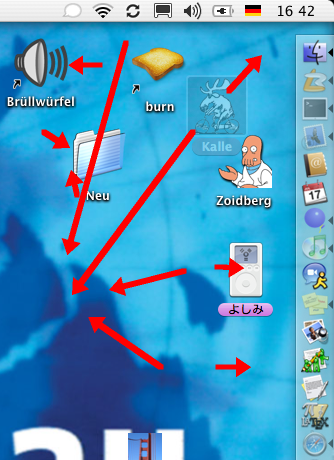
And all that was disregarding any display errors where the icon will appear to be sliding to a new space, then jump back to where you released the mouse button but then turn out to be in the position it slid to while being displayed in the other position until you next click somewhere. These are so many bugs, that they exceed my counting capabilities. And this was only the simplest case that works rather well
- Do the same as above but holding the command key before clicking the icon. This will of course do some selecting / deselecting that you may not expect. Particularly when not being happy with the grid position the icon is on, you may want to re-arrange it while still holding the command key – thus deselecting the icon you actually want to move.
- Do the same as in the first point but with an iPod. – You’ll see the same behaviour as for your hard drive.
- Do the same as in the first point but with a CD. – The cursor will become a ‘plus sign’ cursor and the CD will be copied to the desktop. That’s what the option key is for, dammit.
- Now repeat the same for selections of multiple items. The first observation is that the relative position of items to each other can be changed dramatically. This may be considered a ‘feature’ preventing several icons going to the same spot, but it can also be very irritating.
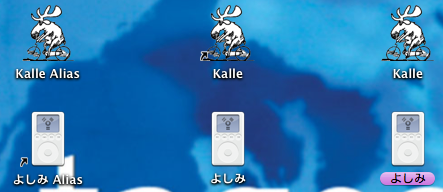
- The previous point is true for files or the startup volume. Drag instead the startup volume and your iPod (or anything containing one item that isn’t on the startup volume for that sake) and – surprise! – the cursor will turn into the ‘arrow’ cursor, with aliases dutifully being created in grid-aligned positions.
-
Just to make the last point more fun, be aware that only the icon you clicked on will actually have an icon with the little ‘alias’ arrow on it to reflect that fact that it is an alias (the other seemingly being broken in some way). In the screenshot you see from right to left: (a) My hard drive and iPod. (b) Aliases of both created by dragging ‘Kalle’ and holding the command key (c) Aliases of both created by dragging よしみ. This is probably a good opportunity to indulge in the obscene width the grid has.